

List of parts for Box #1/2
List of parts for Box #1/2
- 1x 21.5” Screen
- 1x NFC Module
- 2x Screws
- 1x Quickstart flyer
List of parts for Box #2/2
List of parts for Box #2/2
- 1x Base Plate
- 1x Floor Stand
- 1x Screen Stand
- 1x Screen Stand Back Plate
- 1x Screen Mounting Plate
- 1x Power Cable
- 2x Printer Housing Keys
- 1x Pry Tool
- 12x Black M4 Screws
- 4x Silver M4 Screws
- 1x Silver M4 Screw with Washer
- 4x Expansion Bolts, Nuts and Washers
Assembling the floor stand
The stand is made up of three parts:- The Base Plate
- The Floor Stand (houses the power connection)
- The Screen Stand (houses the printer and where the screen attaches).
1
Remove the acrylic panel
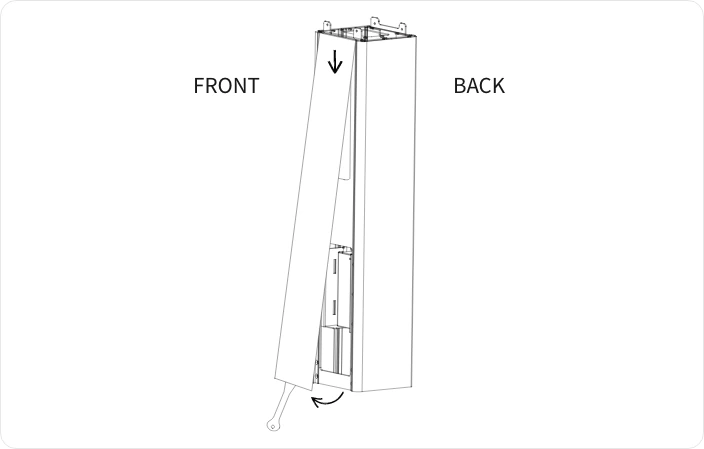
- Use the Pry Tool provided to gently pry open the acrylic panel on the front of the Floor Stand. Insert the tool into the gap at the bottom of the panel and lift away the bottom part of the panel.
- Pull down on the top part of the panel to remove it. This exposes 4 screw holes at the front of the Floor Stand.
2
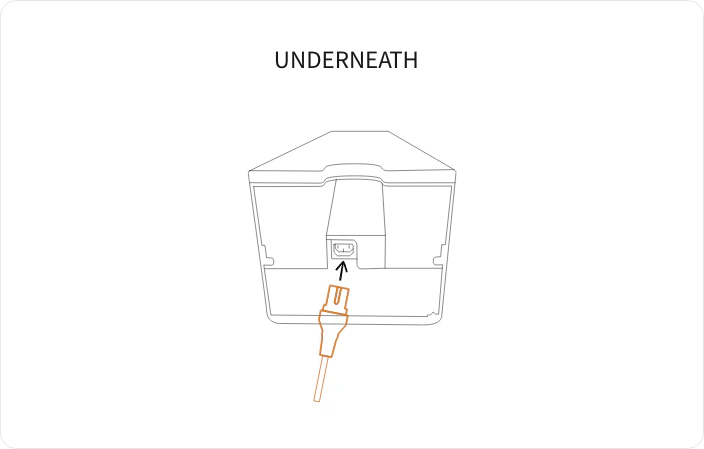
Plug in the Power Cable
3
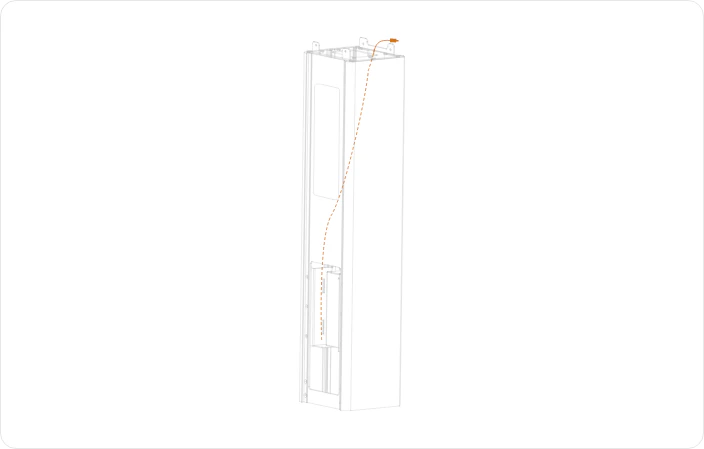
Route the Power Cable
4
Place the Floor Stand onto the Base Plate
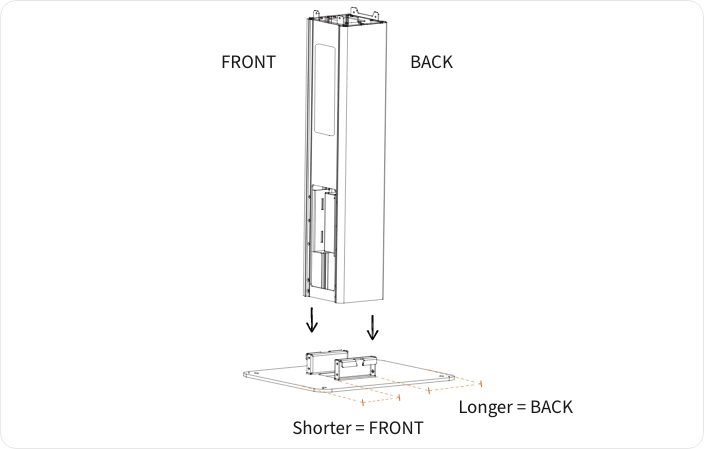
The Base Plate is rectangular with the vertical fixings positioned more to one side. The back of the Floor Stand (the side with the U-shaped cutout for cable routing) should be on the side where there is the most space.
5
Secure the Floor Stand to the Base Plate
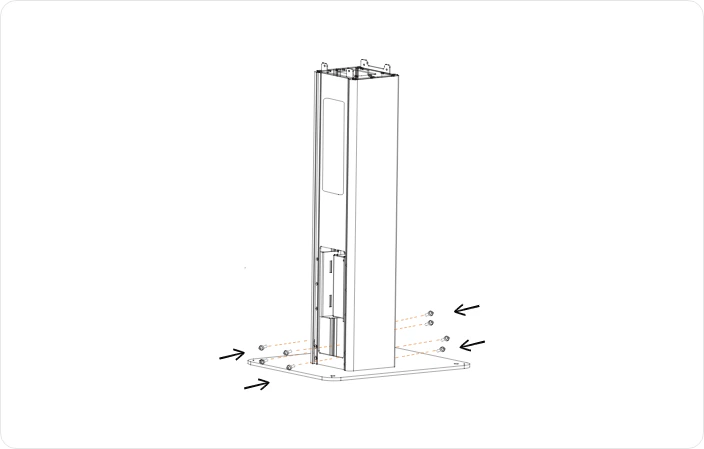
Optional: You can secure the Base Plate to the ground using the 4x M8 Expansion Bolts, nuts and washers, and the pre-drilled holes.
6
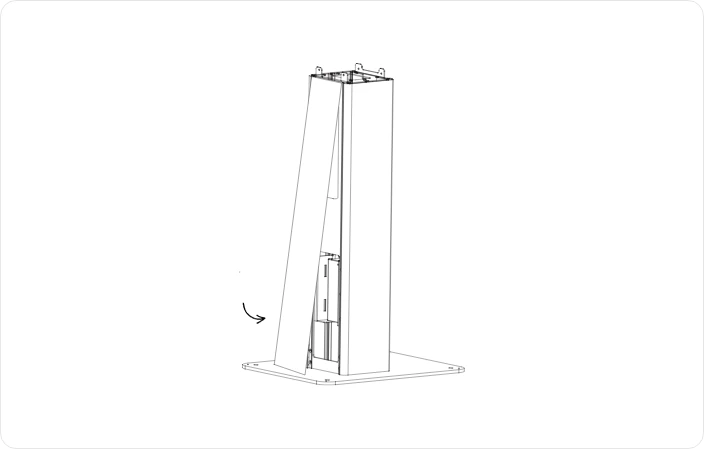
Reattach the acrylic panel
7
Open the Screen Stand panels
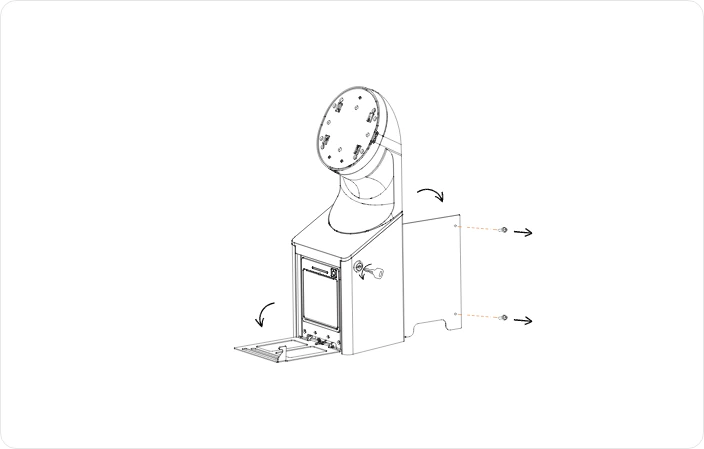
- On the Screen Stand, use one of the Printer Housing Keys to open the front panel (where the printer is housed)
- Open the back panel by unscrewing the 2 screws on the right side. Put these 2 screws to one-side, they will be used again later. This exposes 2 holes at the front and 2 at the back for mounting the Screen Stand to the Floor Stand.
8
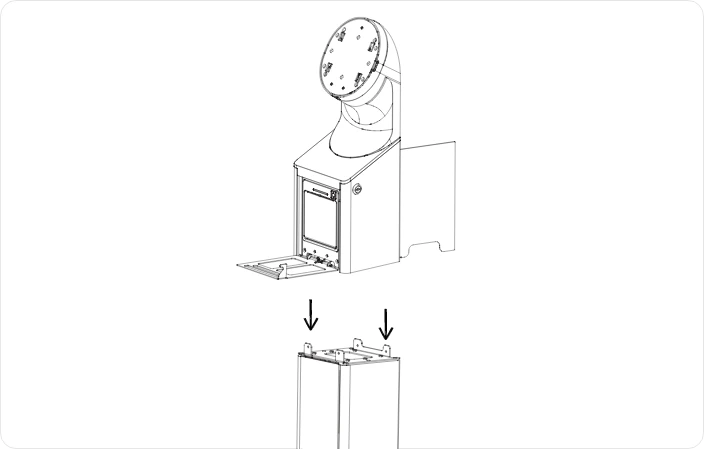
Lower the Screen Stand onto the Floor Stand
9
Connect the power cable to the Screen Stand
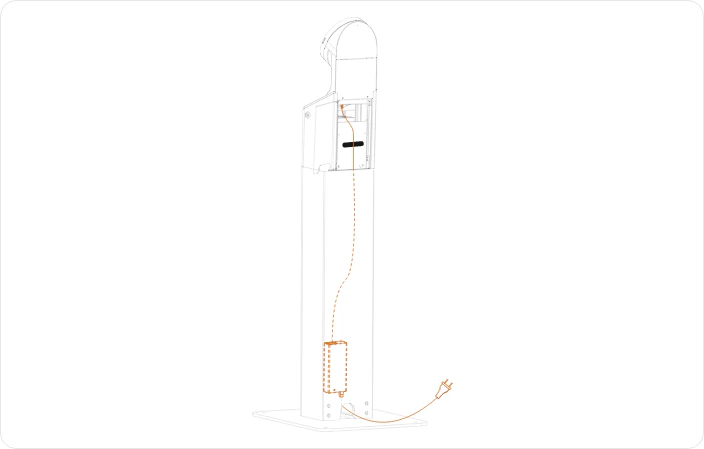
- Connect the power cable that you left hanging out, up into the connector on the left hand side of the Screen Stand.
- Use the velcro strap to secure the cable into place.
- Remove any excess cable by pulling it gently into the empty space in the Floor Stand.
10
Secure the Screen Stand to the Floor Stand
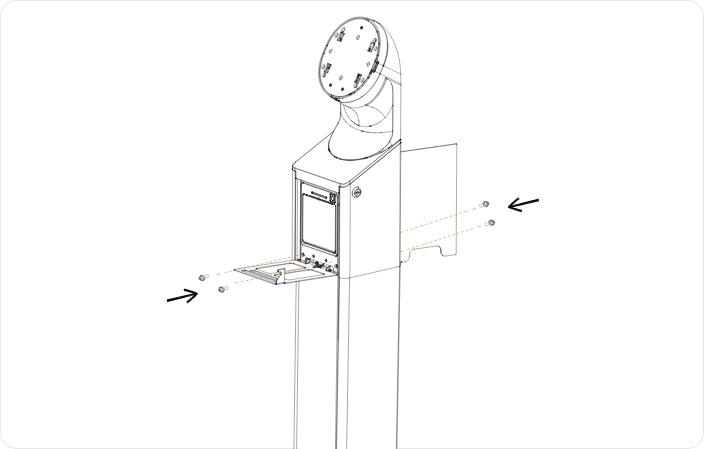
- Use 4x Black M4 screws to secure the Screen Stand to the Floor Stand. 2 at the front and 2 at the back.
- You can now close the front panel.
- Leave the back panel open for now.
Assembling the screen to the stand
1
Attach the Screen Mounting Plate
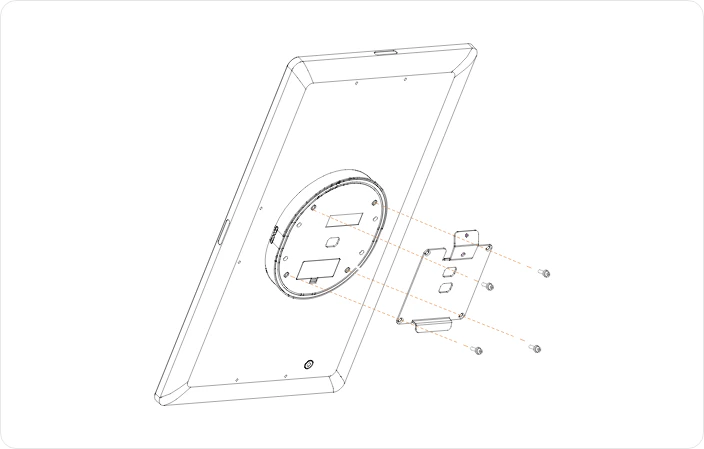
2
Mount the Screen to the Screen Stand
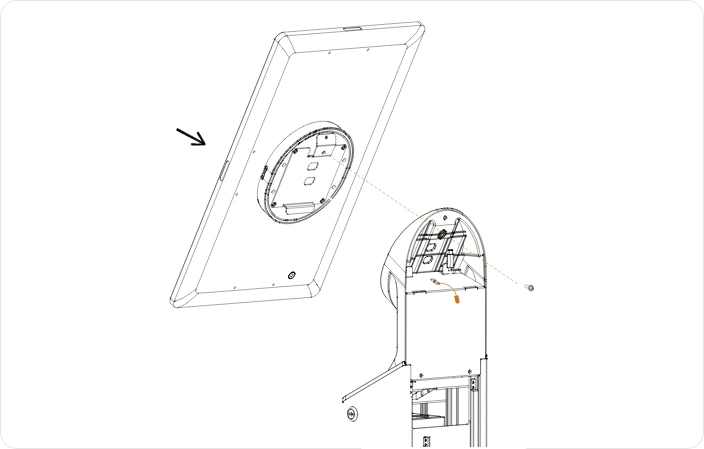
3
Connect the Screen power cable
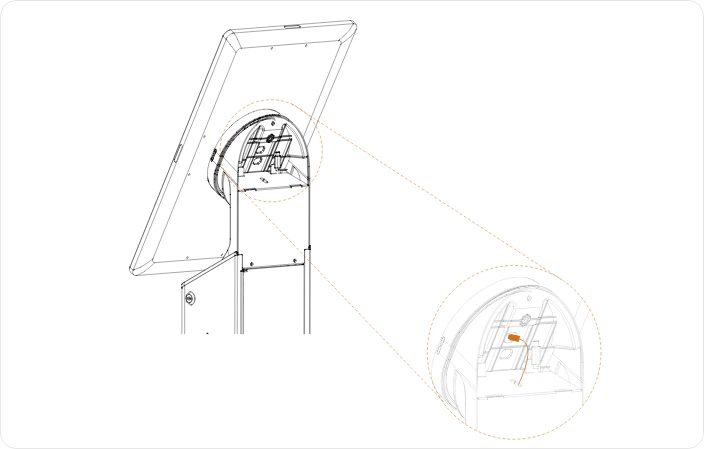
4
Close the back panel
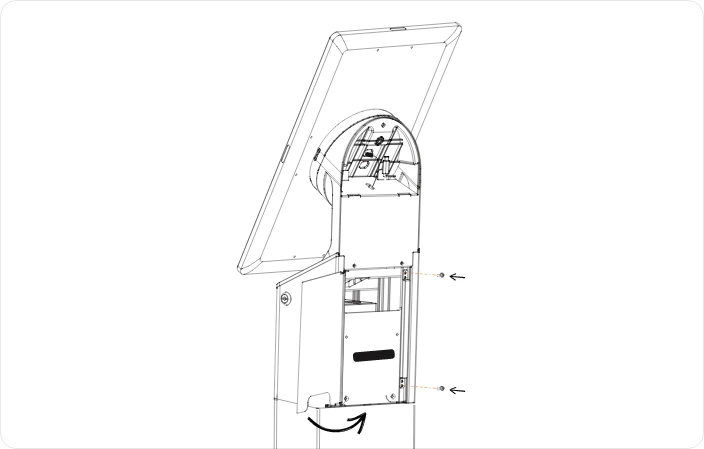
5
Fit the Screen Stand Back Plate
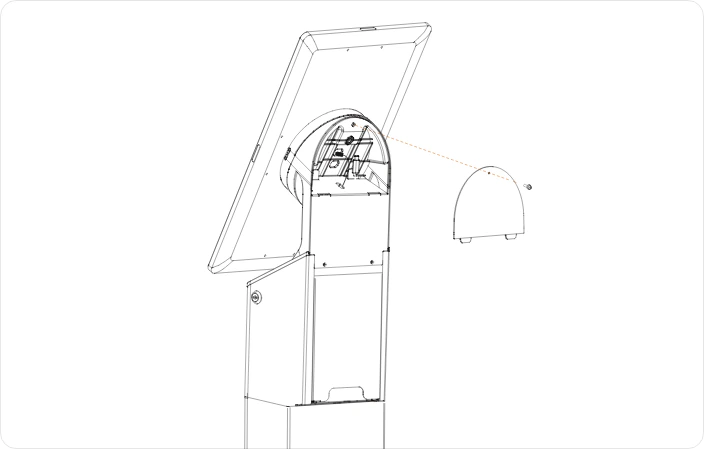
- Fit the Screen Stand Back Plate by slotting the two notches at the bottom into their respective slits.
- Secure it in place at the top of the panel using the M3 screw that is already screwed in the Screen Stand Back Plate.
6
Attach the NFC Module
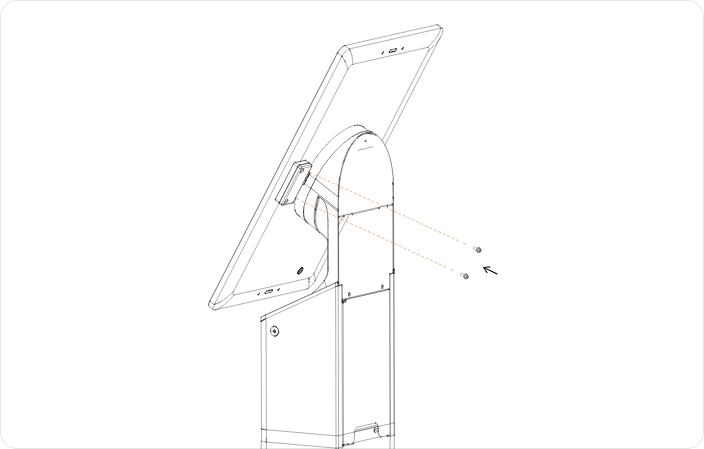
Tighten gently to avoid stripping the threads.
In some cases, the NFC Module may already be installed on the screen.
Powering on the device
1
Plug in the Power Cable
Plug the Power Cable from the bottom of the Floor Stand into a mains power outlet.
2
Power on the Screen
Find and press the Power button on the lower right back side of the Screen.