

Prerequisites
- You must have the Floor Stand version with you
- You must have a Desktop Base Plate (ordered separately)
If the Screen is already mounted to the Screen Stand, you’re ready to go. If it isn’t, you’ll attach it during step 4 of “Assembling the screen to the desktop stand” below, which will direct you to the floor-standing guide.
Preparing parts from the Floor Stand box
1
Remove the Connection Plate from the Floor Stand
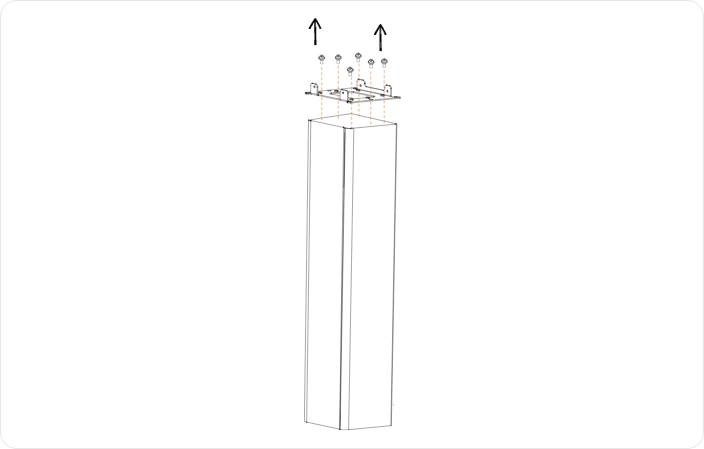
- Unscrew the 6x Black M4 screws that attach the Connection Plate to the top of the Floor Stand.
- Set the Connection Plate and screws aside.
2
Remove the Power Adapter from the Floor Stand
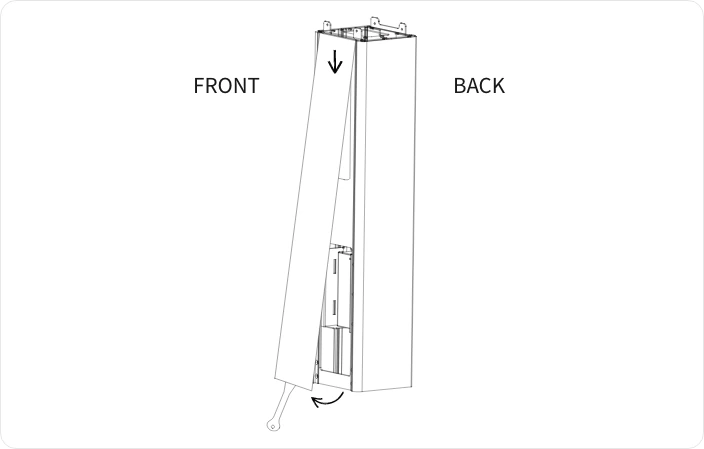
- Use the Pry Tool provided to gently pry open the acrylic panel on the front of the Floor Stand. Insert the tool into the gap at the bottom of the panel and lift away the bottom part of the panel. Pull down on the top part of the panel to remove it. This exposes the Power Adapter.
- Unscrew the 2 screws from the metal bracket holding the Power Adapter in place.
- Remove the Power Adapter and set it aside.
Assembling the desktop stand
The stand is made up of three parts:- Desktop Base Plate
- Connection Plate
- Screen Stand (houses the printer and where the screen attaches).
1
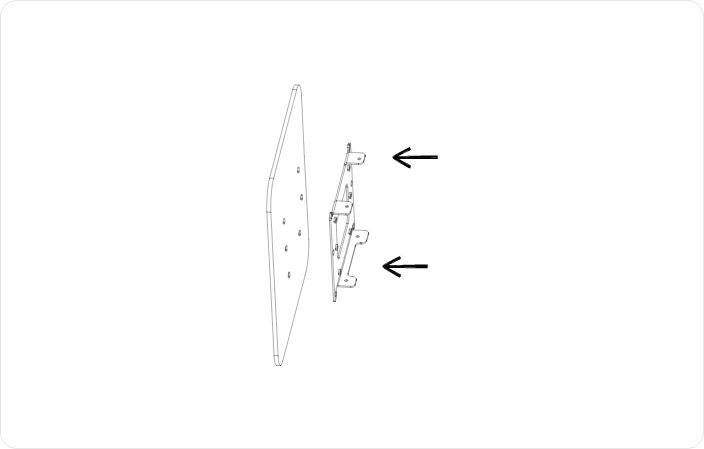
Align the Desktop Base Plate and the Connection Plate
2
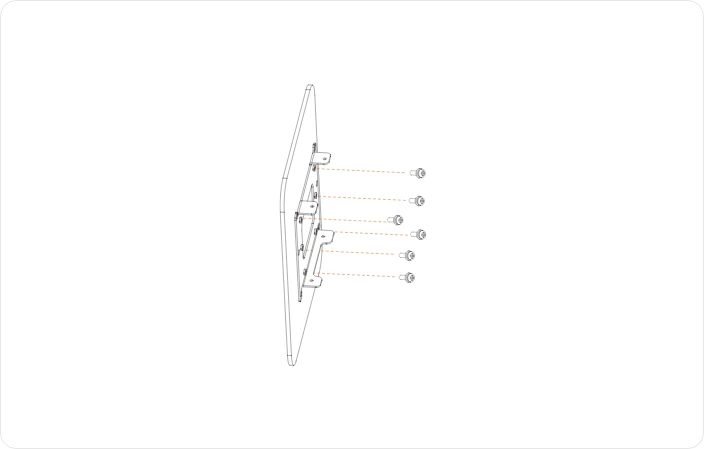
Secure the Desktop Base Plate to the Connection Plate
3
Position the assembled desktop stand
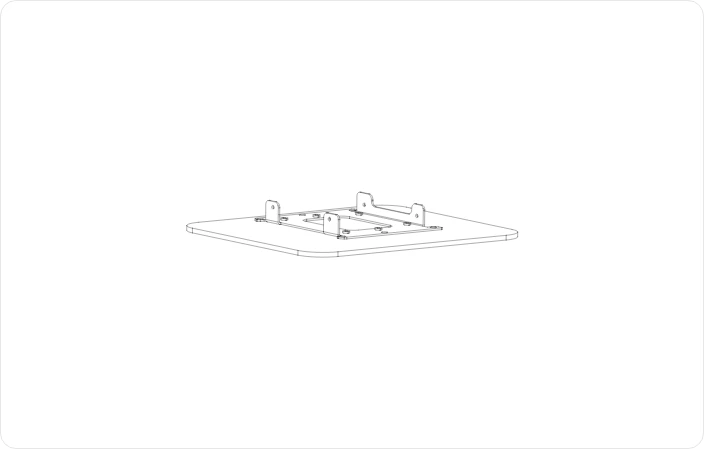
Assembling the screen to the desktop stand
1
Align the Screen Stand onto the Connection Plate
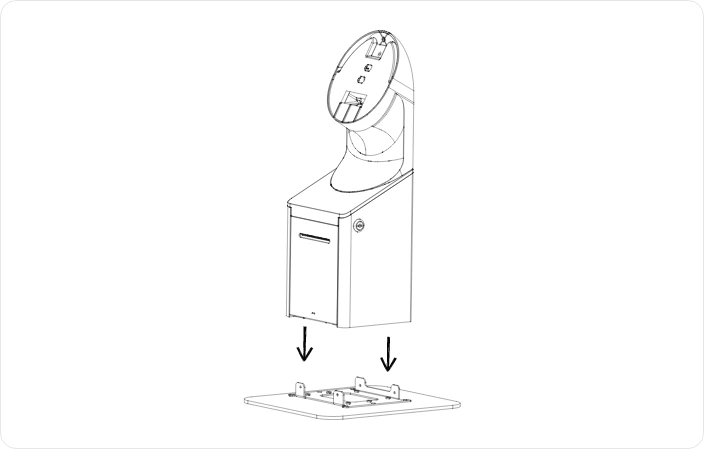
2
Open the Screen Stand panels
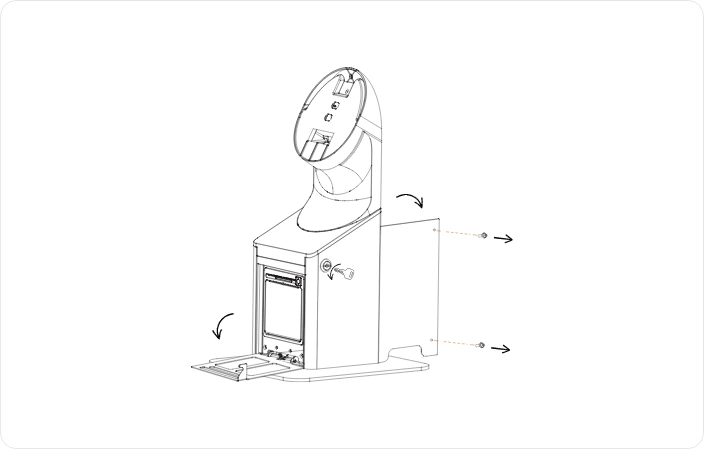
- On the Screen Stand, use one of the Printer Housing Keys to open the front panel (where the printer is housed)
- Open the back panel by unscrewing the 2 screws on the right side. Put these 2 screws to one-side, they will be used again later. This exposes 2 holes at the front and 2 at the back for mounting the Screen Stand to the Connection Plate.
3
Secure the Screen Stand to the Connection Plate
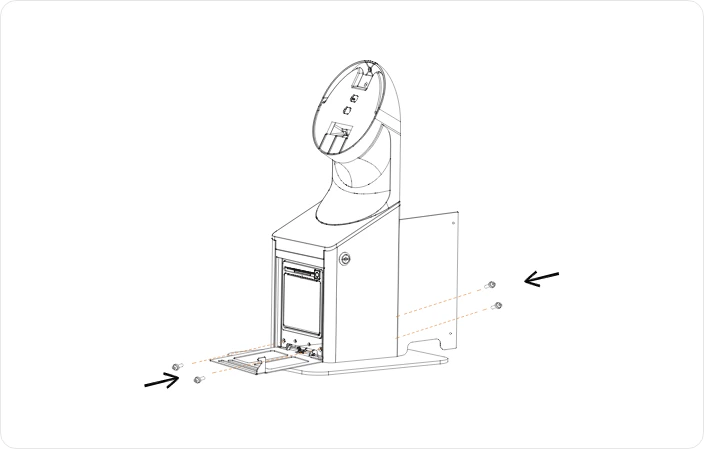
4
Plug in the USB-C power cable
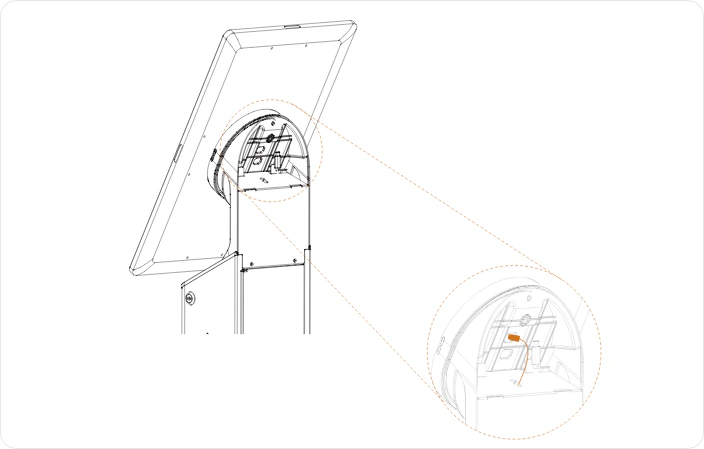
5
Close the front and back panels
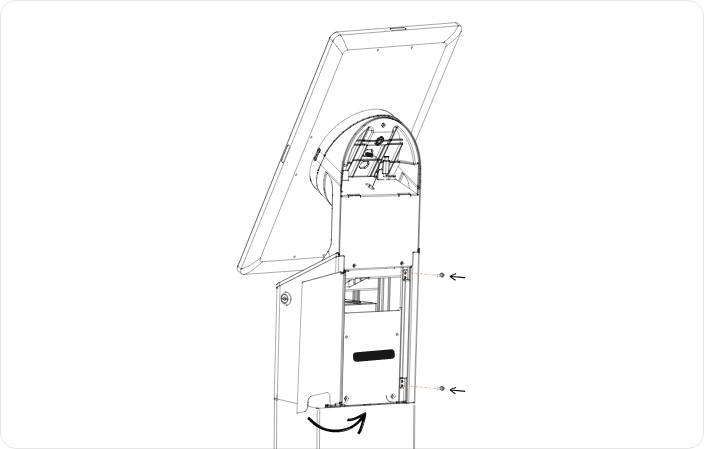
- Close and lock the printer housing cover using the Printer Housing Key.
- Close the back panel and secure with the 2 screws you removed in step 2.
6
Fit the Screen Stand Back Plate
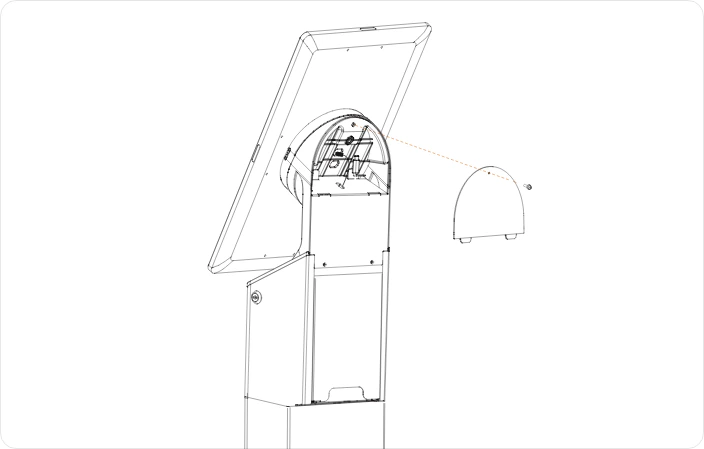
Powering on the device
1
Plug in the Power Cable
Plug the power cable into the Power Adapter that you removed from the Floor Stand and plug the other end into a mains power outlet.
2
Position the Power Adapter
Position the Power Adapter securely on the desk or surface where the device is placed.
For the desktop version, the Power Adapter sits outside the housing.
3
Power on the Taxi Butler KIOSK
Find and press the Power button on the lower right back side of the Screen.