> ## Documentation Index
> Fetch the complete documentation index at: https://docs.taxibutler.com/llms.txt
> Use this file to discover all available pages before exploring further.
# Understanding & using the Venues page
> The Venues page shows all of your locations in the Taxi Butler PORTAL.
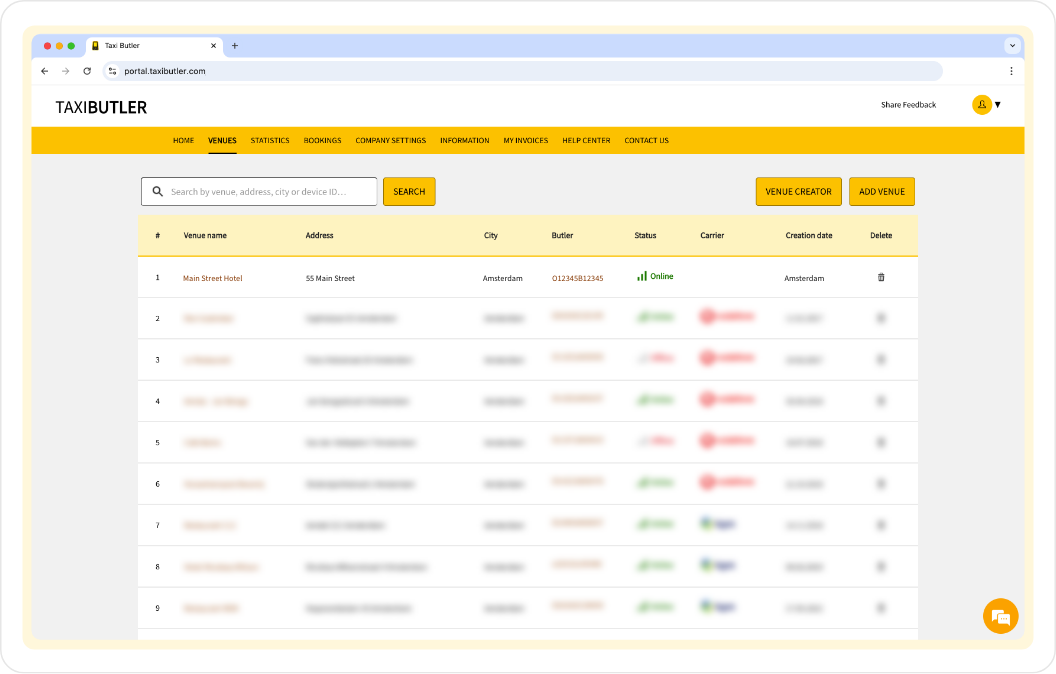 On the Venues page, you can easily:
* Search for a venue
* Access the [Venue Creator](/fleets/portal/venues/adding-a-venue#venue-creator)
* [Add a venue](/fleets/portal/venues/adding-a-venue)
**The Venues table includes various data and properties listed below.**
The name of the venue where the device is installed (e.g., hotel, bar, restaurant).
The street address of the venue.
The city where the venue is located.
The specific Taxi Butler devices associated with the venue.
Indicates the current operational status of the device (e.g. online, recently online, offline).
You can hover over the Status to see more information.
The mobile network or service provider used by the device, if applicable.
The date the venue was created.
An action field used to remove the venue.
## The Venue page
The Venue page shows information about a specific venue. You can access a Venue page by clicking on the venue name from the Venues page table mentioned above.
Information about this venue is displayed in three (or four) tabs:
The "Pick-up" tab shows all the information and settings for this particular venue. This is also where you will [edit venue information](/fleets/portal/venues/adding-a-venue#editing-an-existing-venue) like address, display name, and language, and [set up device configurations & options](/fleets/portal/venues/configuring-devices) for this venue.
The "Bookings" tab is where you'll find all the bookings for this particular venue, similarly layed out to the [Bookings page](/fleets/portal/pages/bookings).
The "Taxi Butler(s) at venue" tab is where you'll find all the devices linked to this venue. It's also where you'll be able to [link](/fleets/portal/venues/linking-a-device) and [unlink](/fleets/portal/venues/unlinking-a-device) devices.
The "Taxi Butler QR(s) at venue" tab is where you'll find all the Taxi Butler Guest QR codes linked to this venue. It's also where you'll be able to [add, edit, download and remove Taxi Butler Guest QR codes](/fleets/qr/setup).
This tab will only be visible if you have Taxi Butler Guest QR enabled on your account. Please [contact sales](https://www.taxibutler.com/contact-sales/) to have Taxi Butler Guest QR enabled on your PORTAL account.
On the Venues page, you can easily:
* Search for a venue
* Access the [Venue Creator](/fleets/portal/venues/adding-a-venue#venue-creator)
* [Add a venue](/fleets/portal/venues/adding-a-venue)
**The Venues table includes various data and properties listed below.**
The name of the venue where the device is installed (e.g., hotel, bar, restaurant).
The street address of the venue.
The city where the venue is located.
The specific Taxi Butler devices associated with the venue.
Indicates the current operational status of the device (e.g. online, recently online, offline).
You can hover over the Status to see more information.
The mobile network or service provider used by the device, if applicable.
The date the venue was created.
An action field used to remove the venue.
## The Venue page
The Venue page shows information about a specific venue. You can access a Venue page by clicking on the venue name from the Venues page table mentioned above.
Information about this venue is displayed in three (or four) tabs:
The "Pick-up" tab shows all the information and settings for this particular venue. This is also where you will [edit venue information](/fleets/portal/venues/adding-a-venue#editing-an-existing-venue) like address, display name, and language, and [set up device configurations & options](/fleets/portal/venues/configuring-devices) for this venue.
The "Bookings" tab is where you'll find all the bookings for this particular venue, similarly layed out to the [Bookings page](/fleets/portal/pages/bookings).
The "Taxi Butler(s) at venue" tab is where you'll find all the devices linked to this venue. It's also where you'll be able to [link](/fleets/portal/venues/linking-a-device) and [unlink](/fleets/portal/venues/unlinking-a-device) devices.
The "Taxi Butler QR(s) at venue" tab is where you'll find all the Taxi Butler Guest QR codes linked to this venue. It's also where you'll be able to [add, edit, download and remove Taxi Butler Guest QR codes](/fleets/qr/setup).
This tab will only be visible if you have Taxi Butler Guest QR enabled on your account. Please [contact sales](https://www.taxibutler.com/contact-sales/) to have Taxi Butler Guest QR enabled on your PORTAL account.