> ## Documentation Index
> Fetch the complete documentation index at: https://docs.taxibutler.com/llms.txt
> Use this file to discover all available pages before exploring further.
# Mobile Booking Tracker
> The Mobile Booking Tracker (MBT) is a mobile web interface for passengers to track, manage and cancel their taxis from their own smartphones.
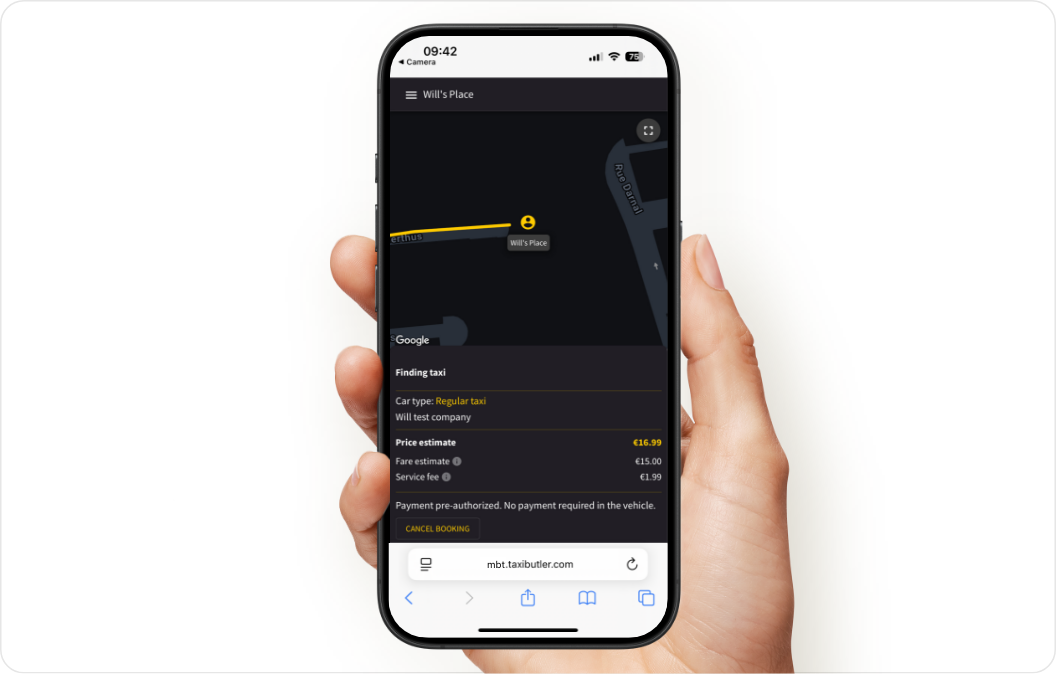 Part of delivering great customer experiences is offering transparency and control. The Mobile Booking Tracker makes this possible by handing over the booking experience from a Taxi Butler device to the passenger’s own smartphone.
## How it works
When a booking is made via a Taxi Butler PRO, PLUS, or KIOSK, a unique QR code is displayed on-screen and/or printed on the ticket.
In some cases, passengers may also receive an SMS confirmation containing a direct link to the Mobile Booking Tracker.
Every QR code is **unique to the individual booking**, ensuring accurate and secure tracking for each passenger.
Passengers can scan this QR code using their smartphone to access the Mobile Booking Tracker, a lightweight mobile web interface that allows them to track their taxi in real time.
For **Taxi Butler Guest QR**, passengers are **automatically redirected** to the Mobile Booking Tracker as soon as the booking is confirmed — no scanning required.
### How to track a booking
Once the Mobile Booking Tracker has been opened, passengers will see the following information:
* A map where the taxi can be tracked in real-time
* The booking status
* Driver and vehicle information
* The requested taxi type
* The transportation provider
* The fare estimate and any associated fees
* How to pay for the booking
### How to cancel a booking
Passengers can cancel a booking from the Mobile Booking Tracker by simply clicking on the "Cancel" button in the bottom left.
### How to change the interface language
Passengers can change the interface language by simply pressing on the language selector in the top-right of the page.
### Contact the transportation provider
If needed, passengers can contact the transportation provider by:
1. Pressing on the menu icon in the top left of the page
2. Then pressing on the `Transportation provider` T\&Cs menu item
3. A page will open the transportation provider's contact information
The Transportation Provider's terms & conditions that apply to the booking can also be found on this page.
Part of delivering great customer experiences is offering transparency and control. The Mobile Booking Tracker makes this possible by handing over the booking experience from a Taxi Butler device to the passenger’s own smartphone.
## How it works
When a booking is made via a Taxi Butler PRO, PLUS, or KIOSK, a unique QR code is displayed on-screen and/or printed on the ticket.
In some cases, passengers may also receive an SMS confirmation containing a direct link to the Mobile Booking Tracker.
Every QR code is **unique to the individual booking**, ensuring accurate and secure tracking for each passenger.
Passengers can scan this QR code using their smartphone to access the Mobile Booking Tracker, a lightweight mobile web interface that allows them to track their taxi in real time.
For **Taxi Butler Guest QR**, passengers are **automatically redirected** to the Mobile Booking Tracker as soon as the booking is confirmed — no scanning required.
### How to track a booking
Once the Mobile Booking Tracker has been opened, passengers will see the following information:
* A map where the taxi can be tracked in real-time
* The booking status
* Driver and vehicle information
* The requested taxi type
* The transportation provider
* The fare estimate and any associated fees
* How to pay for the booking
### How to cancel a booking
Passengers can cancel a booking from the Mobile Booking Tracker by simply clicking on the "Cancel" button in the bottom left.
### How to change the interface language
Passengers can change the interface language by simply pressing on the language selector in the top-right of the page.
### Contact the transportation provider
If needed, passengers can contact the transportation provider by:
1. Pressing on the menu icon in the top left of the page
2. Then pressing on the `Transportation provider` T\&Cs menu item
3. A page will open the transportation provider's contact information
The Transportation Provider's terms & conditions that apply to the booking can also be found on this page.